Remove the installer script after finishing the installation. Leaving it on a publicly
accessible site is a security risk. Delete install.php, or make it inaccessible to
the user the web server runs as.
Start the installer by entering the following URL in your browser (adjust to your alias and domain if different):
http(s)://localhost/svnaccessmanager/install/install.phpUse HTTPS to access the installer over the internet, since passwords are submitted to the web server.
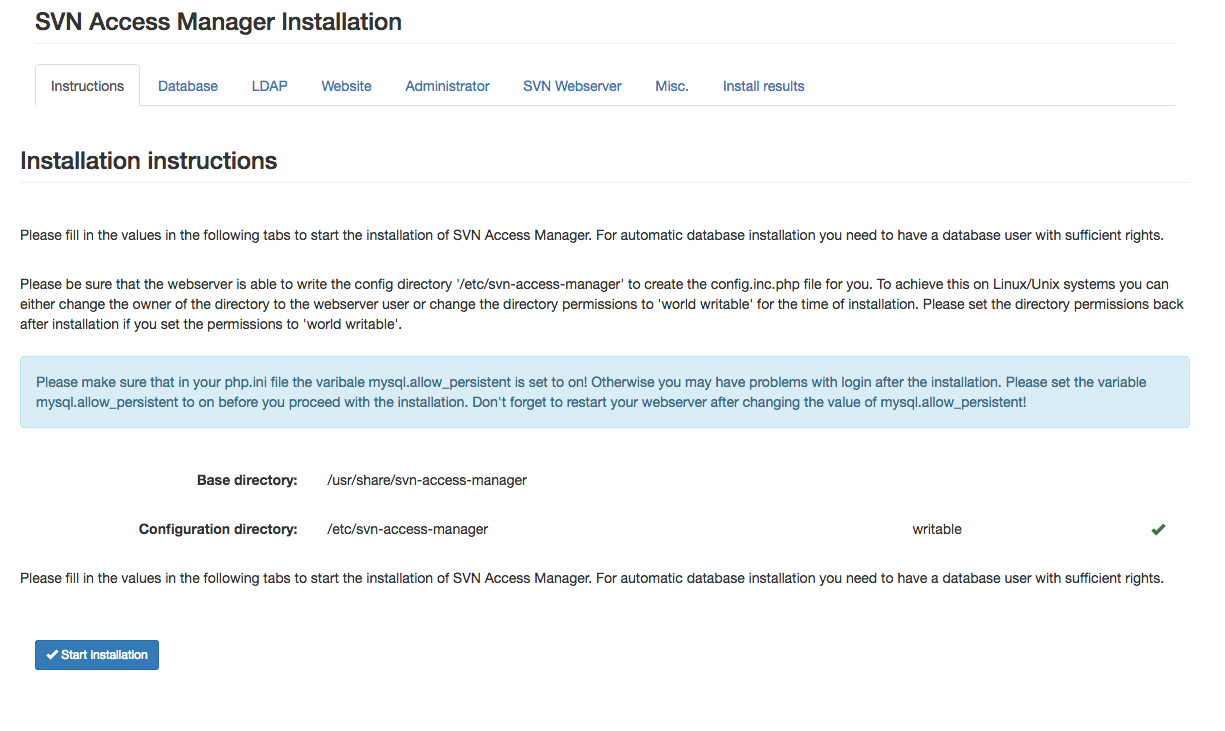
After the installer starts, fill in the values that fit your requirements. The installer consists of several pages, described below. After completing all pages, click Start installation. If there are errors, correct them; otherwise the installer runs and reports success, printing the matching web server configuration.
Instructions
This page explains the installation process and flags any missing settings in your
php.ini. Make sure the web server running the installer script can write the
configuration file to disk.
Database settings
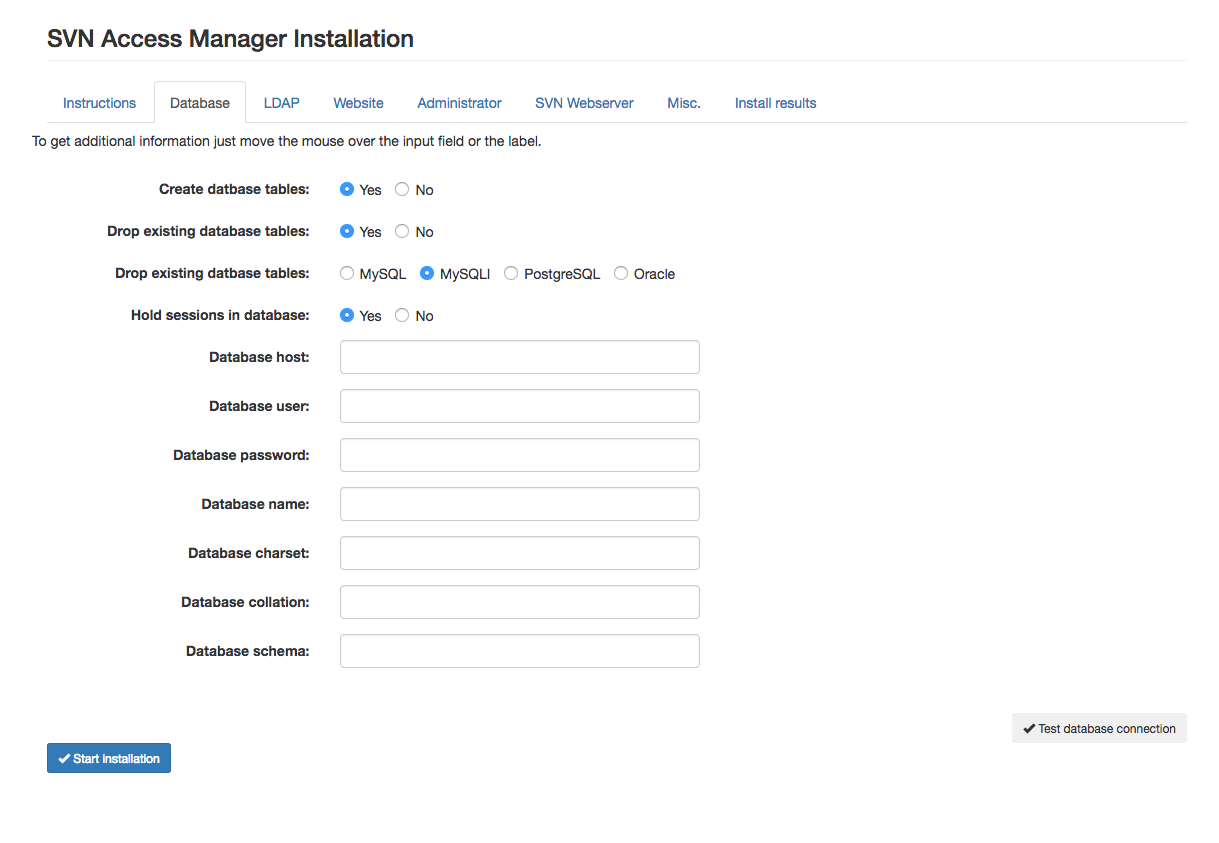
The installer can create the database tables for you, and lets you choose whether to drop existing tables first. The database user must have rights to create and drop tables and indices. SVN Access Manager supports MySQL, PostgreSQL and Oracle — select the one you use.
LDAP settings
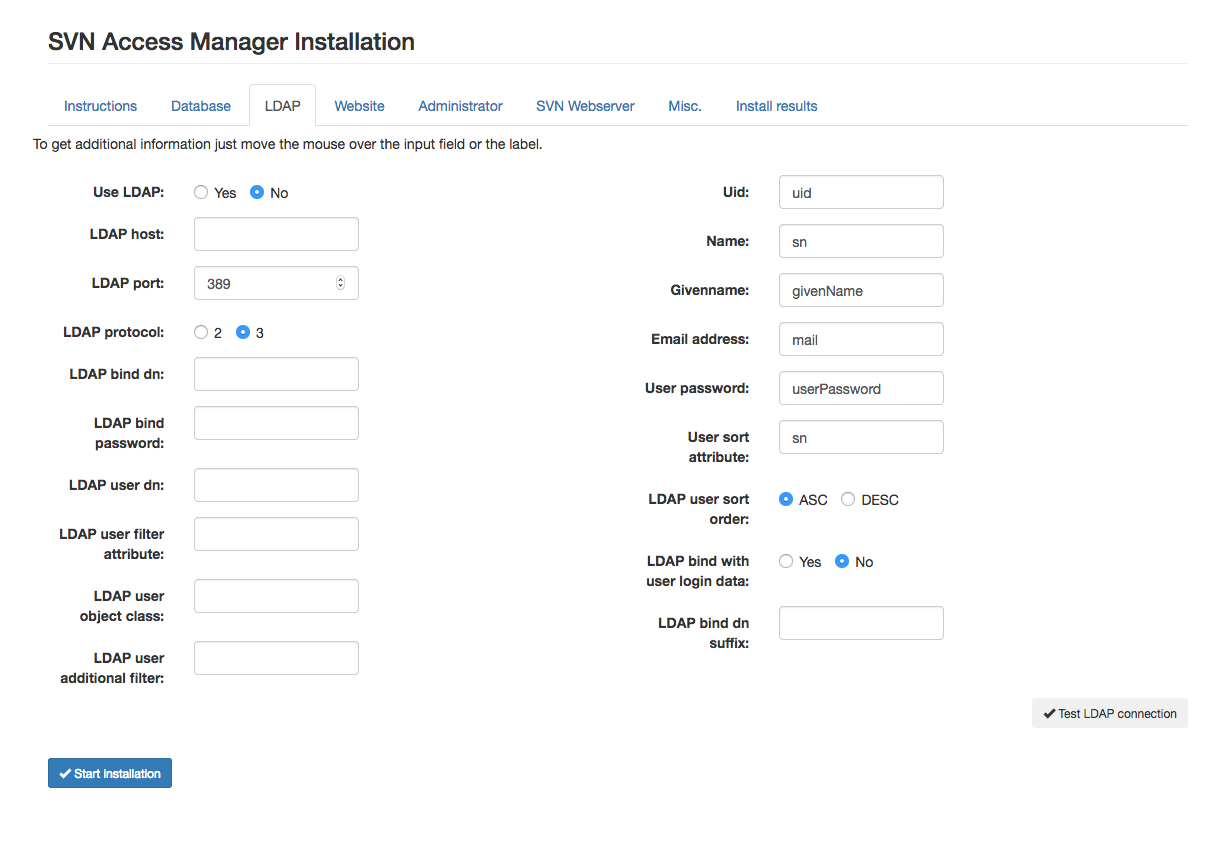
SVN Access Manager can authenticate users against an external LDAP directory. Fill in the connection values and, if necessary, the attribute mapping. You can change the sort order of LDAP users via LDAP user sort attribute and LDAP user sort order.
LDAP bind with user login data changes the behaviour for Active Directory users: the bind is performed with the user’s own credentials. If enabled, you must also fill in the LDAP Bind DN Suffix.
Using LDAP changes SVN Access Manager’s behaviour — you can no longer add users with your own usernames. Users are fetched from the LDAP directory; you can only add them to SVN Access Manager to grant repository access.
The admin user you choose must exist in the connected LDAP directory, otherwise you will not be able to log in to SVN Access Manager.
After installation, a sample Apache LDAP-authorization configuration matching your input is shown on the result page.
Website settings
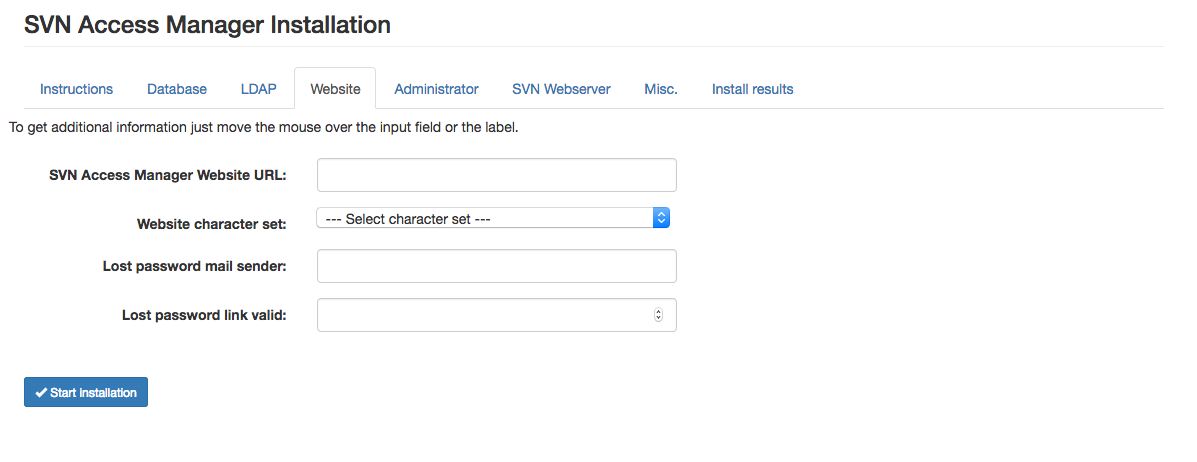
Set the website character set here — it must be compatible with the database character set. You can also configure the sender address for lost-password notification e-mails and how long a password-reset link stays valid.
Administrator account
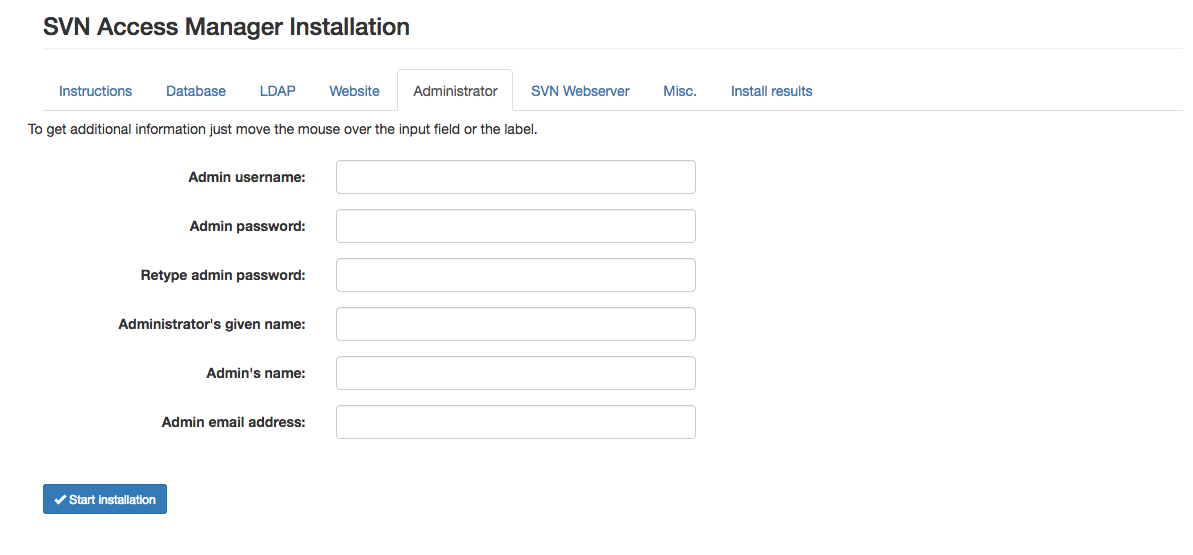
After a successful installation you need a user to administer SVN Access Manager, with full rights within the application — choose a strong password. By default it must consist of lower-case letters, upper-case letters, digits and special characters, with 14 characters minimum. Mismatched password entries are flagged as you type.
Webserver settings
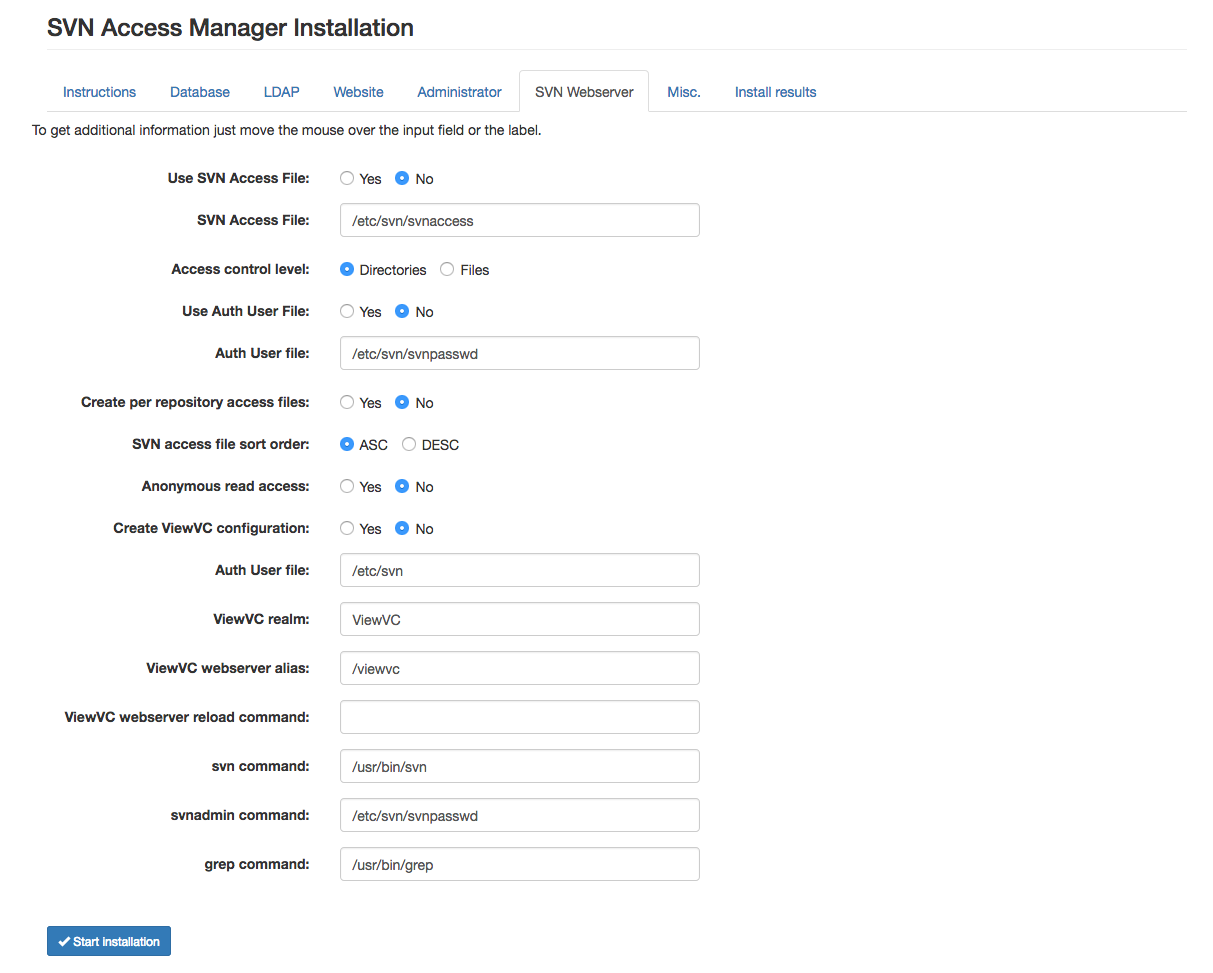
Decide whether to use SVN access control and Apache user authentication. For each restriction you enable, specify where the generated files should be written — the web server user must be able to write them. SVN access file sort order controls the sort order of paths in the access file. Anonymous read access adds an entry letting anonymous users read a repository.
To use ViewVC restrictions, select the option to create the configuration files, specify the output directory, the alias used for ViewVC in the web server, and a command that reloads the web server. See Using ViewVC for details, and the ViewVC homepage for background.
SVN Access Manager relies on the svn and grep commands — check the
installer’s suggested paths and correct them if necessary.
Miscellaneous settings
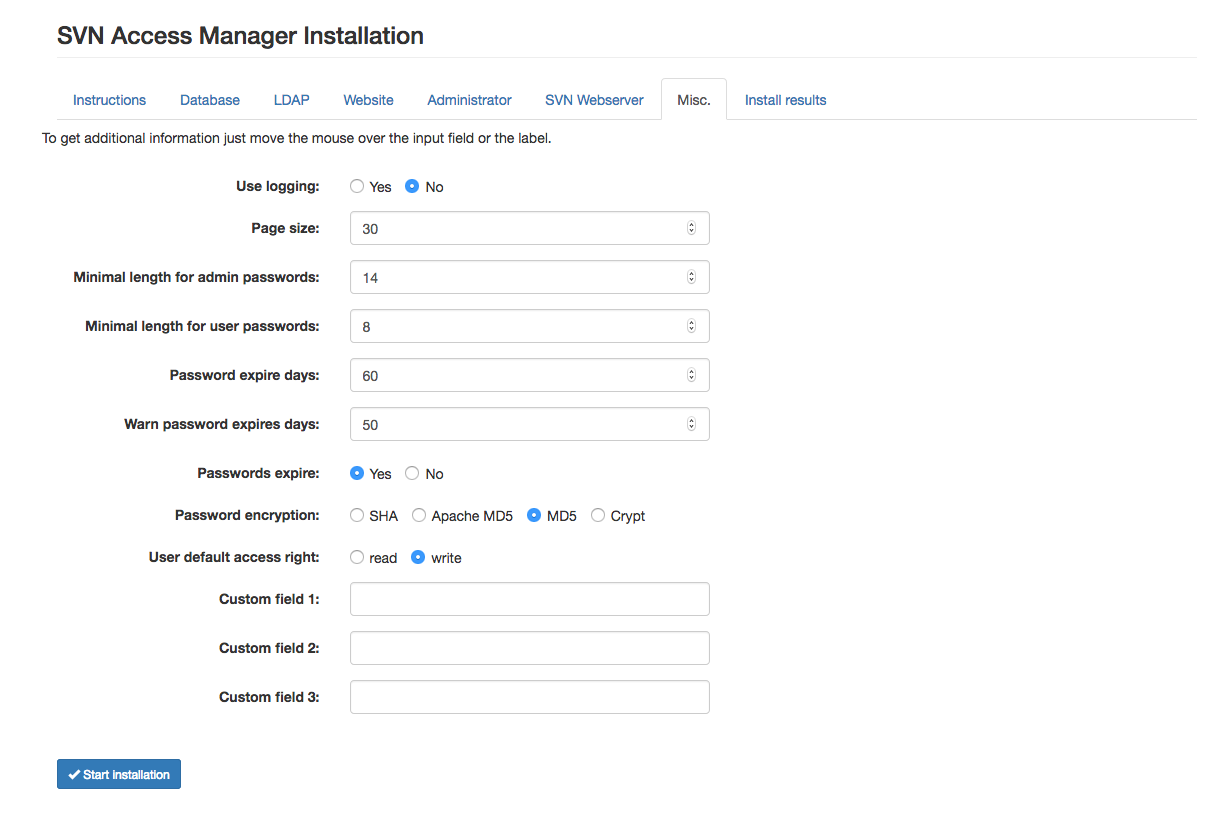
Decide whether to use JavaScript — it makes directory selection easier by letting you pick a directory with one click. SVN Access Manager can log every action to a database table, with a report available afterwards. Page size sets how many records are shown per screen by default; users can override this in their own preferences.
The password length fields set the minimum length for user and administrator passwords —
strong, sufficiently long passwords are strongly recommended, since weak passwords make a repository
easy to compromise. You can choose crypt or md5 for password hashing, and
switch at any time via config.inc.php; existing passwords are re-encrypted the next time
a user changes theirs. You can also define up to three custom user fields, e.g. phone number or fax
number — they only appear once you set a name for them.
Installation errors
This page lists every error found during installation, including the results of any database or LDAP connection test. You are redirected here automatically whenever necessary.